Apart from _brand.yml, every setting here lives in _webrarian.yml. The configuration reference lists them all.
Branding with brand.yml
webrarian reads brand.yml, the format Quarto and Shiny use, so one file can dress all three. Put a _brand.yml next to _webrarian.yml.
# _brand.yml
meta:
  name: "Survey Analysis"

logo:
  images:
    icon: "assets/icon.svg"
    wide: "assets/logo.svg"
  small: icon
  medium: wide

color:
  palette:
    navy: "#2C3E50"
    teal: "#18BC9C"
  primary: teal
  background: "#FFFFFF"
  foreground: navy

typography:
  fonts:
    - family: "Inter"
      source: google
  base: "Inter"
  monospace: "JetBrains Mono"
You can also point brand at a file elsewhere (brand: "branding/brand.yml"), or write the brand inline.
# _webrarian.yml
brand:
  meta:
    name: "Survey Analysis"
  color:
    primary: "#336699"
  logo: "assets/logo.png"
The table shows where each field appears.
| brand.yml field | Where it shows |
|---|---|
meta.name |
the page title and link previews, unless ui.meta.title is set |
logo.small |
the browser tab icon |
logo.medium (else logo.large) |
the loading screen; a logo with light and dark variants shows each in its scheme |
color.primary |
the accent color and the loading spinner |
color.background |
the background, with panel headers and borders in shades of it |
color.foreground |
text |
typography.base, typography.monospace
|
the interface font, and the editor and console font |
typography.fonts |
fonts to load (Google fonts by link, local files copied in) |
Other fields are ignored. color.primary and the fonts apply in both light and dark mode. The background and foreground apply in light mode only, unless both are set and the background is dark, in which case the whole palette applies in both modes.
Light and dark
A site follows each visitor’s system setting until they choose otherwise. The Settings gear at the right end of the footer offers Auto, Light and Dark. The choice is kept in the visitor’s browser, for that site only, and the loading screen, the editor, the console and R’s help pages all follow it.
To make a site light or dark for everyone, pin it. A pinned site has no gear.
# _webrarian.yml
ui:
  theme: dark
ui.theme is auto (the default), light or dark. A brand whose palette is dark pins its site to dark, since that one palette is all the site has; ui.theme: light is then ignored with a warning.
Two things keep following the visitor’s system whatever is chosen: the scroll bars and pop-up lists the browser draws itself, and HTML output other than help pages, such as an interactive chart.
The loading screen
A loading screen shows first, before the workspace starts, and you choose what it says.
# _webrarian.yml
ui:
  loading:
    message: "Preparing your R environment..."
The message is plain text. For your own markup, set custom-html to HTML that replaces the loading screen’s contents. The screen and its status line, where a load failure and the Reload button appear, stay.
The loading screen follows the color scheme too: dark for a visitor whose workspace will be dark, with the brand’s dark logo when it has one. A brand with one logo shows it in both schemes. A loading screen with custom-html keeps its light colors in every scheme, since what you wrote for it was made for them.
Page metadata
These settings fill in the page’s title and its link previews.
# _webrarian.yml
ui:
  meta:
    title: "Survey Analysis"
    description: "Explore the 2025 survey in R, in your browser"
    og-image: "assets/social-preview.png"
    site-url: "https://myname.github.io/survey-analysis/"
    twitter-card: "summary_large_image"
title defaults to the brand or project name, and description to project.description. og-image takes effect only with site-url, because link previews need an absolute URL.
Custom CSS
Point ui.custom-css at a stylesheet inside the collection.
# _webrarian.yml
ui:
  custom-css: "assets/custom.css"
The stable way to restyle the viewer is through its CSS variables.
:root {
  --accent-color: #18BC9C;
  --bg-primary: #1a1a2e;
  --bg-secondary: #23233d;
  --text-primary: #eaeaea;
  --font-body: "Inter", system-ui, sans-serif;
  --font-mono: "JetBrains Mono", ui-monospace, monospace;
}
A palette written this way is the site’s one palette, for light and dark alike. When it is dark, as this one is, pin the site with ui.theme: dark, so that the editor’s syntax colors stay the ones made for a dark background and no visitor is offered Light.
brand.yml sets the same variables, so set each in one place only. To target one mode, write a rule for each way a page comes to be in it: by the visitor’s system, and by a choice from the Settings gear or a pinned site, which the page carries as data-theme on <html>.
@media (prefers-color-scheme: dark) {
  :root:not([data-theme="light"]) { --accent-color: #7fd1c1; }
}
:root[data-theme="dark"] { --accent-color: #7fd1c1; }
The loading screen uses #webrarian-loading and .webrarian-spinner. Other class names can change between releases, so build on them at your own risk.
Panels
All five panels are on by default, and terminal is the R console. Turn off the ones a lesson does not need.
# _webrarian.yml
repl:
  panels:
    editor: true
    terminal: true
    files: false
    plot: true
    environment: false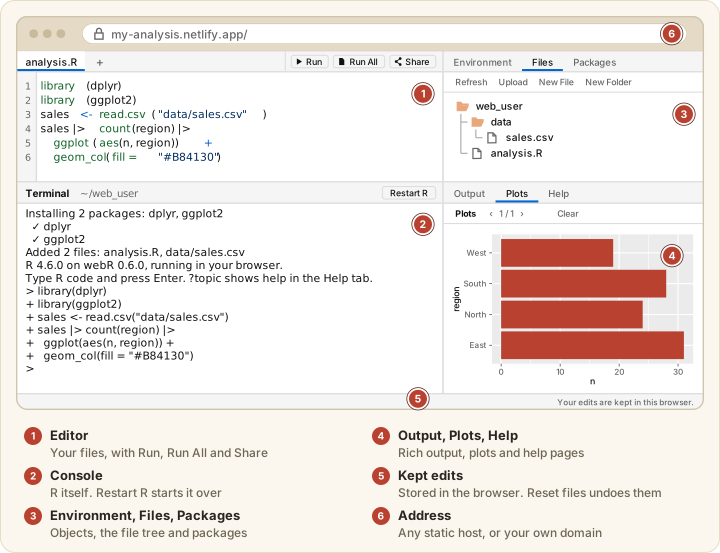
editor (1) sits over the terminal (2), environment and files share the tabs at (3), and plot is the Output, Plots and Help tabs at (4). The footer (5) and the address bar (6) are not panels.
Startup order
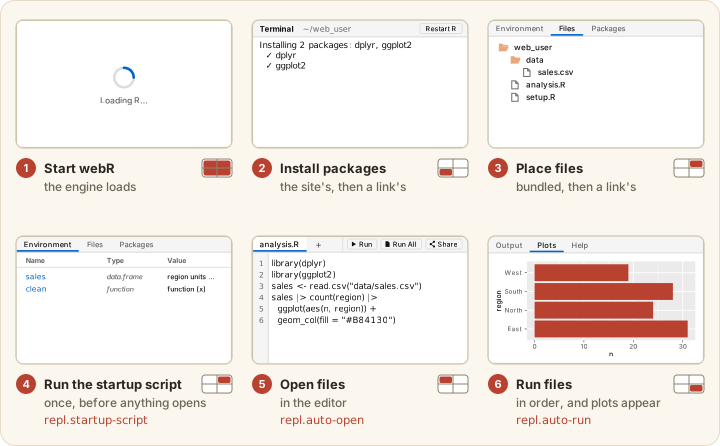
repl.startup-script, repl.auto-open and repl.auto-run control the last steps, and Bundling Files explains them. Keep startup scripts quick, because the visitor watches a spinner while they run.
Share links
The Share button makes a link carrying the visitor’s open files. repl.share-links decides what a link may do.
| Mode | A link may | Share button |
|---|---|---|
"open" (the default) |
add files (replacing a bundled file with the same path), add packages and apply the other settings a link can carry | shown |
"fixed" |
add files only. One whose path matches a bundled file is saved beside it as <name>-shared.<ext>. Packages and settings are ignored, with one notice |
shown, but its links carry files only |
"off" |
nothing, since links are ignored with one notice in the console | hidden |
Set the mode under repl.
# _webrarian.yml
repl:
  share-links: "fixed"
A bare off (read by YAML as false) also means "off".
A link never removes what you built. The page puts the bundled packages and files in place, adds the link’s files, then runs your startup script (a shared file at its path is always saved as <name>-shared.<ext>). A link’s files open in the editor and the site’s auto-run is skipped, so they run only if the link asks. Package names in a link are validated and passed to R as data, never as code. On a build.offline: true site a link can add only bundled packages. Mirrors ignore links unless built with share_links = "open" or "fixed".
Keeping visitors’ edits
The viewer keeps each visitor’s edits in their own browser and restores them on their next visit. If you have since published a new version of an edited file, yours stays in place and theirs opens as <name>-restored.R. Pages opened from a share link keep nothing. Reset files at the foot of the page forgets the stored edits.
In the Files tab a visitor opens a file with a double-click and finds Open, Rename, Download and Delete in a menu on the file: a right-click, the button at the end of its row, or Shift+F10. Several files can be selected with Shift or Ctrl (Command on a Mac), then downloaded as one zip, deleted after one question or opened together.
Only what a visitor types in the editor is kept. What they do in the Files tab is not: on their next visit a file they deleted or renamed is back as you published it, and a renamed or new file returns only if it was open in the editor.
The edits are stored under your site’s address, where any code that runs there can read them. That includes code in a share link and, on GitHub Pages, every site under the same <user>.github.io address. Ask visitors not to keep secrets in the editor. For exam pages or shared computers, turn storage off.
# _webrarian.yml
repl:
  persist-edits: false
Embedding a site in another page
A site can sit in an <iframe> on another page, and that page can send it code to run and files to open with postMessage.
<iframe id="lesson" src="https://you.github.io/course/" width="100%" height="600"></iframe>
<script>
  const frame = document.getElementById("lesson");
  window.addEventListener("message", (event) => {
    if (event.source !== frame.contentWindow || event.data?.protocol !== "exlibris-embed/1") return;
    if (event.data.type === "ready") {
      frame.contentWindow.postMessage(
        { protocol: "exlibris-embed/1", type: "run", id: "1", code: "summary(cars)" },
        "https://you.github.io"
      );
    }
  });
</script>
The frame sends ready once loaded, accepts run (with code) and open (with files, a list of name and text), and answers each with a result. The embedding page can do no more than a share link can, so repl.share-links: off turns this off too. A frame on another site keeps its own store of visitors’ edits.